

POST UPDATED: DECEMBER 26, 2021
In the current version of Google Search Console, your site might have one or more results for this Error: Status > Index coverage > Submitted URL marked ‘noindex’

This isn’t necessarily an error, although if a site is not being indexed properly, Search Console is a great place to start.
A page that is set to ‘noindex’ (vs. the default ‘index’) requests to Google that the page not be indexed nor displayed in search engine results. Google may still crawl this page and follow the outbound links, and it may also display an abbreviated listing in the SERPS (search engine results pages).
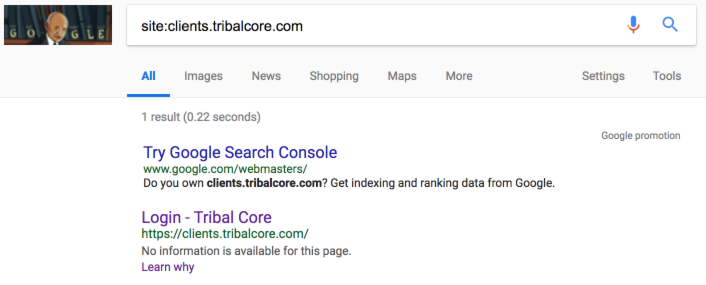
Here’s an example – our Client Portal is ‘noindex’ because it’s just for clients. There is no content that we want found in search results. You can see below that Google knows the site exists, and the home page is in Google’s index. Other than that, Google tells us that “no information is available for this page” which is fine by us.
Why would you want a page marked noindex?
Sections of a website (be they a custom post type in WordPress or part of the taxonomy) may be marked ‘noindex’ for various reasons, particularly if there is no additional information beyond a collection of links. Imagine a user landing on such a page and trying to make sense of it. If there is no additional value or context added, the user is less likely to engage, which is a lost opportunity and seen negatively by Google (via user intent, time on site, bounce rate, etc).
Check everything at site launch: An Asterisk Is Costing the U.S. Open Thousands of Visitors
When reviewing this “Submitted URL marked noindex” error in the new Google Search Console, first ensure nothing is marked ‘noindex’ that shouldn’t be. When a website is built, the entire site is generally set to “noindex” even if it is located on a password-protected server. So when that site launches, sometimes someone forgets to change that setting to “index” and the site can be hidden from Google indefinitely! See the article to the right on the U.S. Open for a great example of how to launch a website without remembering to check basic settings.
Woocommerce and noindex
WooCommerce, developed and managed by Automattic, is an open-source e-commerce plugin for WordPress. It is a great option for small catalogs, with the ability to add a wealth of plugins, some available for a fee. So essentially, the smallest sites can deploy Woocommerce for free and bigger sites can pay for important features like subscriptions and gateways.
By default, Woocommerce has noindex set on:
- the cart
- checkout
- my account
Noindex on these Woocommerce pages are NOT errors. Let’s look at “search intent.” If someone is searching for “blue widgets” or “iPhone SE cover,” there is no value for that user to land on an empty cart page on your site.
The useful information for consumers and site visitors is on your product pages, your blog posts, etc. – those are the pages you want set to index. Any page that is transactional (including the cart, checkout and the My Account page) shouldn’t be indexed, because that’s not where you’d want anyone to land.
Search Console’s noindex Options
- Test Robots.txt Blocking – as in the “U.S. Open” example above, the robots.txt file that sits in the root directory of your site can be the cause of a page or directory or entire site not being indexed. Checking noindex and robots.txt for potential directions to Google is essential.
- Fetch as Google – see how Google sees your page on both desktop and mobile. You can click through to see the page code (what Google calls “Downloaded HTTP response”) and how it renders for Google vs. actual human visitors.
- View as Search Result – because the page is set to “noindex”, this should display no results or possibly the obscured version we saw in the Client Portal example above.
- Submit to Index – this would only be applicable if you have changed a page from “noindex” to “index” and subsequently want to make sure Google sees it. Generally, we’d want Google to organically crawl the newly indexed page via the website’s navigation and internal link structure, but using the “Submit to Index” option may be useful to force the issue.
When to Index noindex
Reviewing the noindex pages in Google Search Console shows us where there may be SEO opportunities ripe for the picking. This entails making certain pages ‘index’ and adding quality, useful content.
An Author page by default usually just contains links to that author’s posts. Looking at this from a user experience, how do we add value to an Author page that’s otherwise a bundle of links? We can add in a full bio for the author and a carousel of photos. This creates a much more well-rounded context for links to the author’s posts. We can also adjust the Page Title, the Meta Title and the Meta Description.

For instance, those two elements (Page Title and Meta Title) might, by default, be named “Author Archives: Bob Smith” and could be better named something like “Bob Smith, Featured Author” or “Bob Smith, Chef and Food Critic”. Once the page is changed from “noindex” to “index,” it is now much better positioned to rank for relevant searches and to appeal to site visitors at the same time.
How to remove the noindex tag in WordPress
If you need to remove noindex from a page in WordPress, your best bet is to use the Yoast SEO plugin.
When would you want to do this? A good example would be if you are building a new home page and want to show it to a few people, but don’t want it public yet (alternately, you could set a password on it for those recipients).
Another example would be if you are creating near-duplicate landing pages for ad campaigns. You generally would not want these pages to be indexed for organic search results.
First, edit the Page or Post you want noindexed. Then scroll down to the Yoast SEO box, which should appear below the main content area, be it the Classic or Gutenberg editor. Click the gear icon.
Look for this: Allow search engines to show this post in search results? That’s the noindex setting! Change “Default for Posts, currently: Yes” to “No” and click the blue Update button.
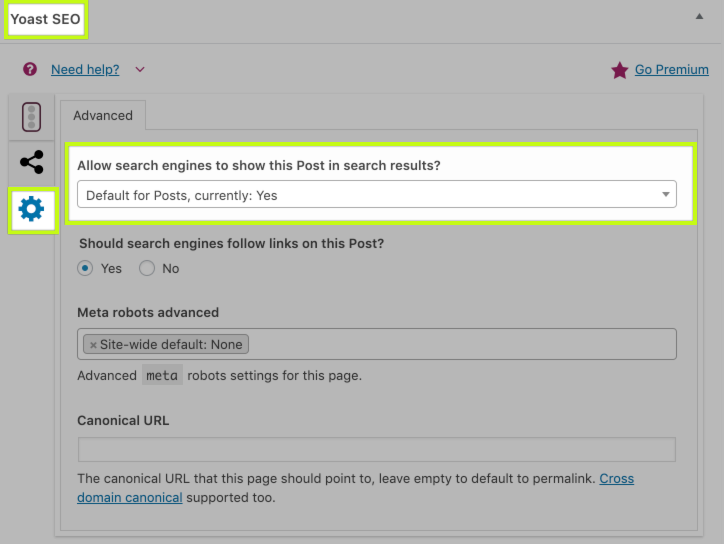
Yoast SEO allows us to hide a page or post, removing it from the sitemap and adding a noindex setting, which is effective in hiding it from the search results.
To test, go to your Sitemap and review. If you are using Yoast SEO’s sitemap, your URL will be yoursite.com/sitemap_index.xml
Click into either post-sitemap.xml or page-sitemap.xml (depending on whether you are setting noindex on a Page or Post) and ensure that your intended action is correct – you shouldn’t see the Page or Post you marked as noindex. Voila.
If you’re running a Woocommerce store, you can also do this for Products, taking a look at product-sitemap.xml to check your work.
Categories and Tags
Categories and Tags are likely candidates for ‘noindex’ as well. This is because they simply aggregate a bunch of content without adding value. This SEO opportunity (which I refer to as Taxonomy SEO) is to add quality content that adds value to the collected posts on that topic.
For instance, let’s say a recipe website has 8 recipes that have been tagged with “carrot”. Visiting that page will show eight headlines, possibly with some additional metadata like an excerpt, author, date, and # of comments. It may have a Page Title and Meta Title of “Tag Archives: Carrot.” That’s about it. It’s not a compelling user experience.
How to add value? Start by adding 500 words or more to the top and/or bottom of the page, putting “carrot” in context – the culinary origins of carrots, different varieties of carrots, how the taste of a carrot is described, how carrots are used in both savory and sweet dishes, etc.
Handy for marketers: Social Network Image & Video Size Guide
Change the Meta Title, Meta Description and Page Title to more accurately describe the Carrot Recipes. Add some high-quality images large enough for social sharing.
Let’s kick it up a notch. You can then edit each article that’s been tagged “carrot” and write a custom excerpt of 50 words or so that is unique from the content on the page. This further architects a real, unique, interesting page of value to both Google and site visitors.
Bring all these elements together, and this page is “index” ready. Note the above changes may require a plugin or some developer time.
Review Your Sitemap
If your site has a sitemap, here’s a handy tip. Look at it! There may be any number of pages you don’t actually want on the sitemap (which basically tells a search engine spider what pages it can crawl). For instance:
- test pages
- old, outdated pages
- administrative pages
- confirmation pages
How do you know if you have a sitemap? First, try going to yoursite.com/sitemap.xml. If that doesn’t produce any results, check with your web developer, who can usually enable a sitemap with a quick plugin. Also of note, sitemaps can be submitted to Google Search Console for validation and crawling, although the strategy and efficacy of doing so is the topic of another post.
If your site has pages on the sitemap you don’t want visible, you’ll need to do two things:
- change the status of each page to ‘noindex’
- exclude the page from the sitemap
How you do both of these things are largely dependent on how your site is set up. In WordPress, the free Yoast SEO plugin is widely used for managing both of these things.
UPDATE 1: July 23, 2020 – according to Search Engine Journal, the new version of WordPress – 5.5 – will support Sitemaps. Interesting! This apparently will require web hosts to install the SimpleXML PHP extension. This might be a non-starter for some web hosting companies, but in general, I think we’re likely to see broad support for this, given the large installed WP user base.
UPDATE 2: December 26, 2021 – employing Yoast SEO for Sitemap functionality is still the gold standard and by far the most common implementation for sitemaps on WordPress.
Crawled – currently not indexed
The following “Crawled – currently not indexed” Coverage issue in Google Search Console can be a tricky one to decipher. Most recently – December 2021 – we’ve seen this occur on a client website where the site was improperly migrated from WordPress to Shopify, resulting in an old set of permalinks that don’t properly redirect to a new set of permalinks, since WordPress and Shopify tend to handle permalink structures differently.
We’ve updated the Sitemap URL in Google Search Console, so it’s crawling the new content more deliberately. And we’re updating all of the redirects, where the old permalink was redirected to the blog home page, and is being reworked to redirect to a 1:1 contextual match, preferably the same blog post on the new platform.
Google may also not index pages and posts it’s crawled because of quality issues or duplicate content. This report in Search Console can provide clues – look for insight such as the permalink structure – maybe its posts in a certain category, or all Tags or something else related to the taxonomy and the directory structure. Be sure to review all of the different ways that content might not be indexed to properly address this issue.
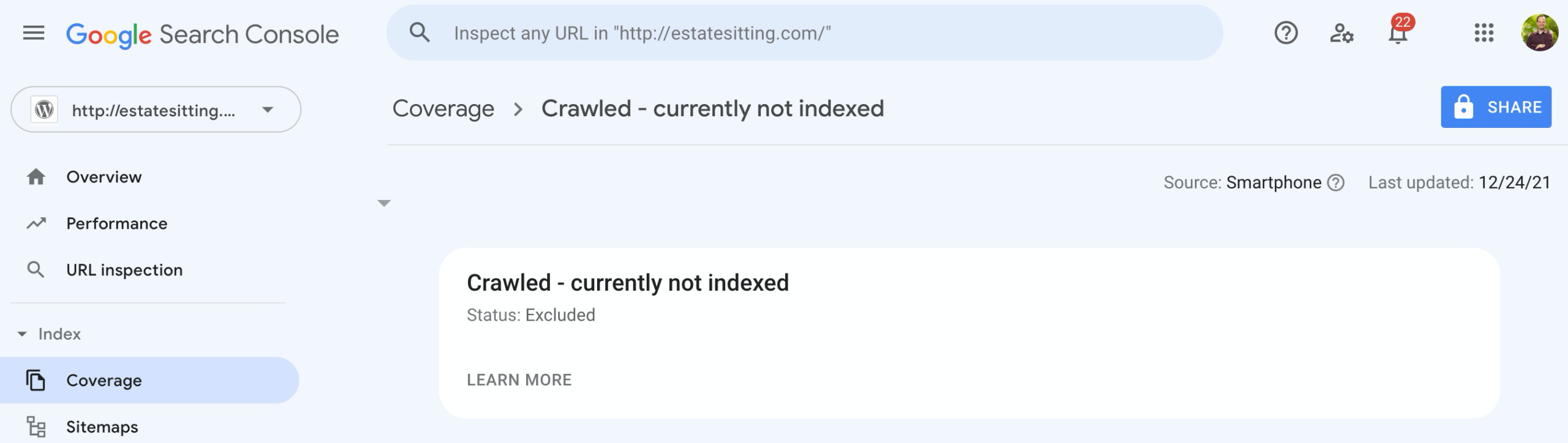
Crawled – currently not indexed issue in Google Search Console
This noindex Summary
Google flagging ‘noindex’ pages as errors in Search Console can be quite revealing. Use this opportunity to make sure the pages that are effectively hidden should be. Also look for opportunities to build out great content for your visitors on pages that could be changed to ‘index’. And check out your Sitemap – it can be pretty revealing in unexpected ways. Let us know in the comments below if you have any questions!
Do you run a big website with indexing problems or other SEO issues? Get in touch, maybe we can help!
Are you a WordPress designer or developer? We’re a web marketing agency optimized for WordPress. Check out our (WP) Partner Program and learn how we can support your clients and earn you long-term business.